YouTube Thumbnail Editor
Change your thumbnail by typing what you want. Every example on this page is a real edit, with the exact sentence that was typed.
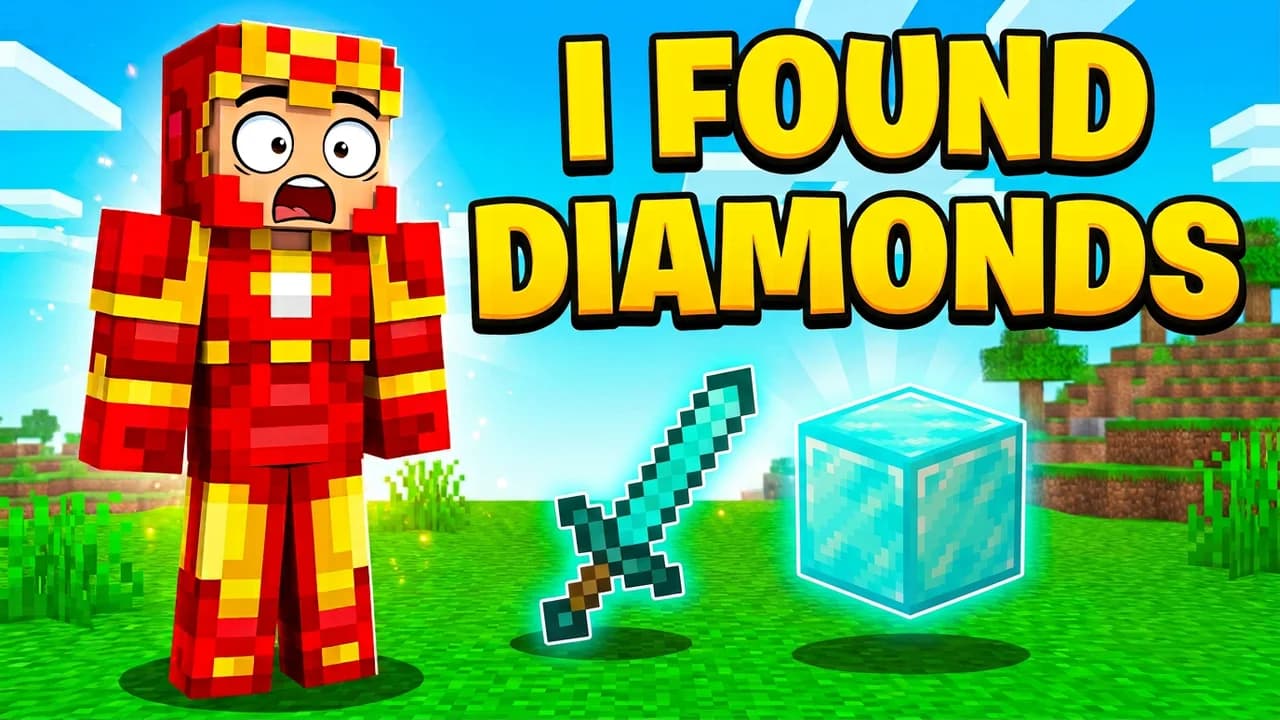
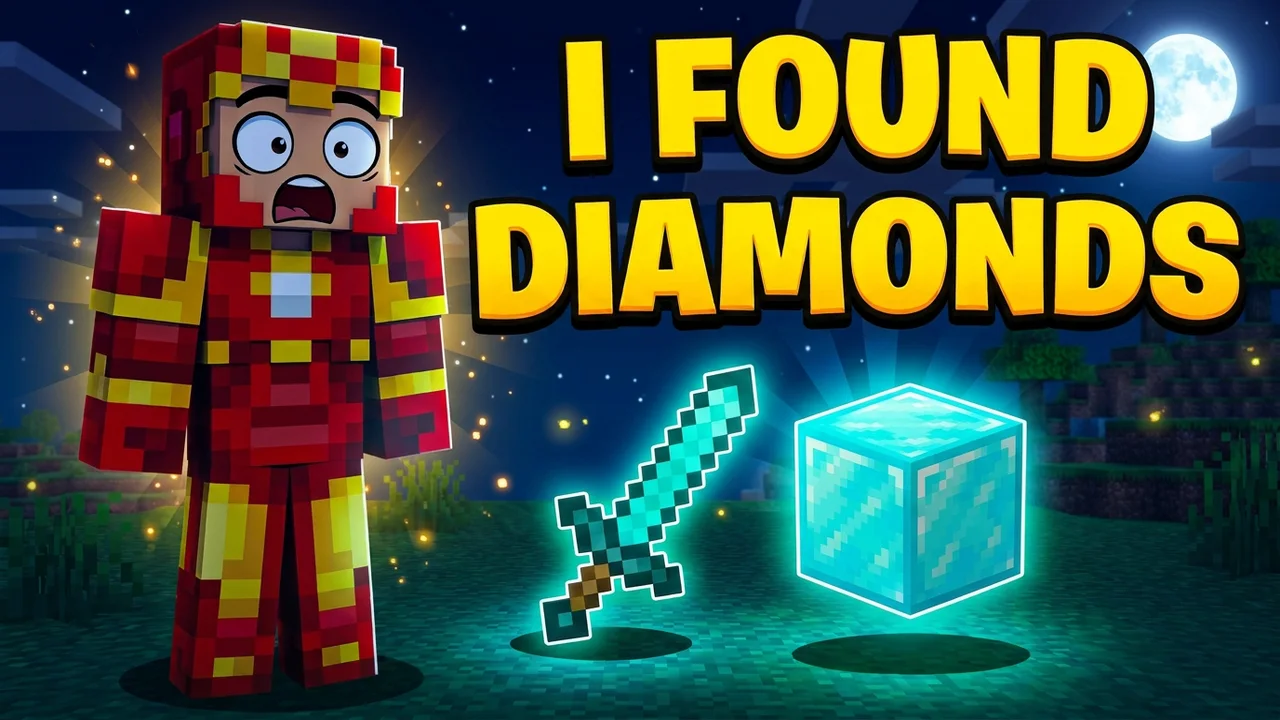
Make it night. Dark blue sky, a bright moon, the diamonds glowing. Same hero, sword, diamond block and headline.
How it works
Three steps, no layers
- 1Open a thumbnail
Upload one you already have, or open a free template for your game.
- 2Type the change
Say what you want in plain words: the headline, the time of day, the player's size, what is in the scene.
- 3Compare and keep it
Slide between before and after. Keep it, or type the next change on top.
Change the words
One line to swap the headline. Use it when the title of the video changes after you made the thumbnail.


Change the headline to I BEAT 100 STAGES
The rest of the picture is lightly redrawn, so check the before and after.
Rebuild the layout
A longer line can move the player, change the size of things, add a character and rewrite the headline in one go.
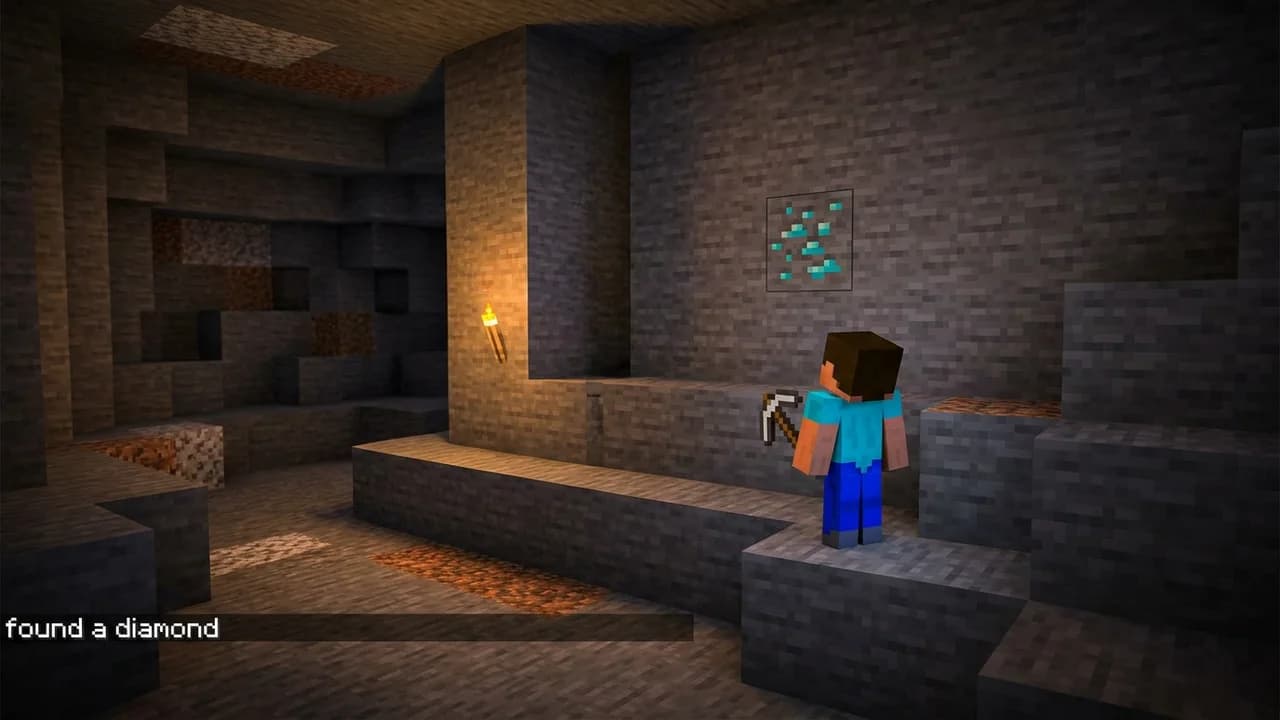
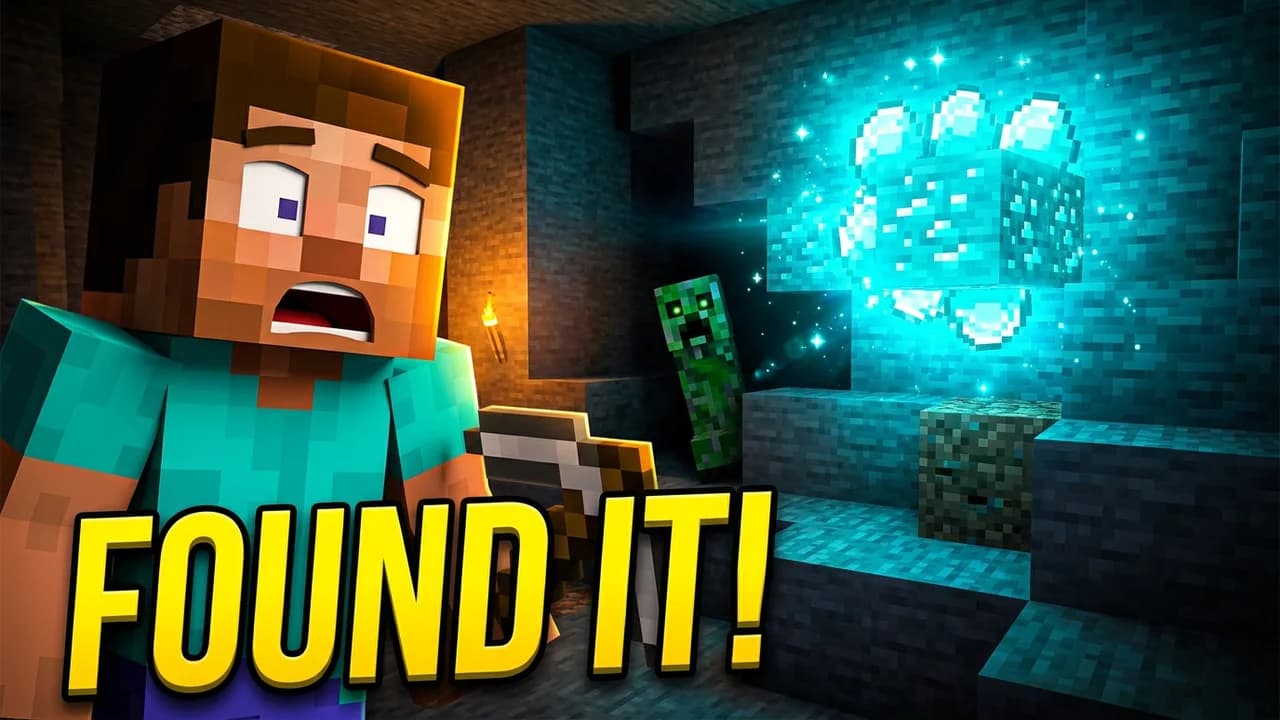
Make the player a huge close-up on the left with a shocked face, turn the diamond into a giant glowing cyan cluster on the right that lights the cave, add a creeper looming in the shadows behind, make it bright and high contrast, and replace the caption with the headline FOUND IT in huge yellow letters.
The before is a deliberately bland example made for this demo.
From a plain scene to a finished thumbnail
Start from a plain scene with your player in it and describe the thumbnail you want.
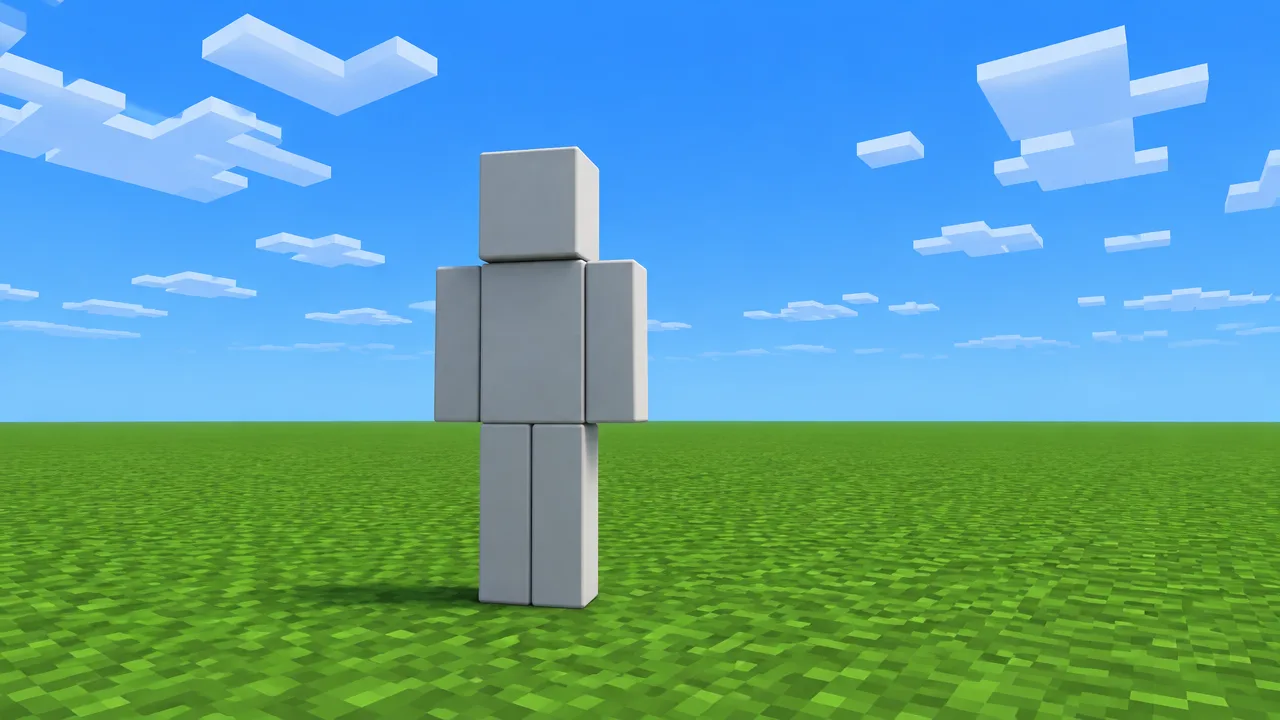
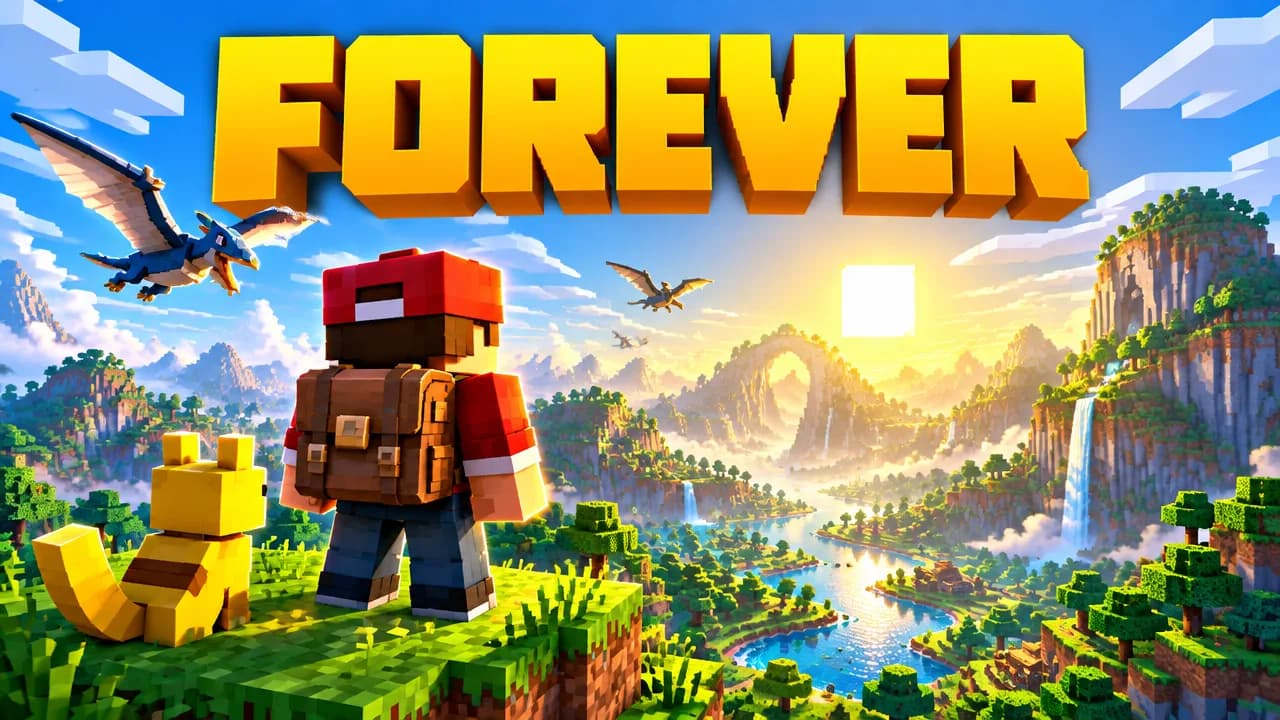
turn this into an epic Minecraft adventure thumbnail: red cap and backpack, a yellow blocky creature buddy, flying creatures over a giant sunlit valley, huge text FOREVER
How to change a thumbnail on YouTube
- Open YouTube Studio and go to Content.
- Click the title of the video you want to change.
- Under Thumbnail, choose Upload file and pick your new image.
- Press Save. The video keeps its views, link and comments.
Size rules: YouTube thumbnail size. Layouts that work: YouTube thumbnail examples. Templates for your game: gaming thumbnails.
Questions, answered straight.
How do I edit a YouTube thumbnail?+
Open the thumbnail in LaunchLens and type the change you want, for example "Change the headline to I BEAT 100 STAGES" or "Make it night". When it looks right, download it and upload it in YouTube Studio: Content, click the video, then Thumbnail, Upload file, and Save.
Can I change the thumbnail of a video that is already published?+
Yes. In YouTube Studio open Content, click the video's title, upload the new image under Thumbnail and press Save. The video keeps its views, link and comments.
Does editing redraw the whole thumbnail?+
Sometimes a little. A small change like a new headline keeps the scene, but the rest of the picture can be lightly redrawn, so compare the before and after with the slider before you keep it. You can always type the next change on top.
Is the thumbnail editor free?+
You get 90 free credits when you sign up, no card. Each edit uses credits, and paid plans start at $9 a month.
What size should my edited thumbnail be?+
16:9 in JPG or PNG. YouTube recommends 3840 x 2160, and 1280 x 720 is the smallest that still looks sharp. Full details are on our YouTube thumbnail size page.