Second look, same template
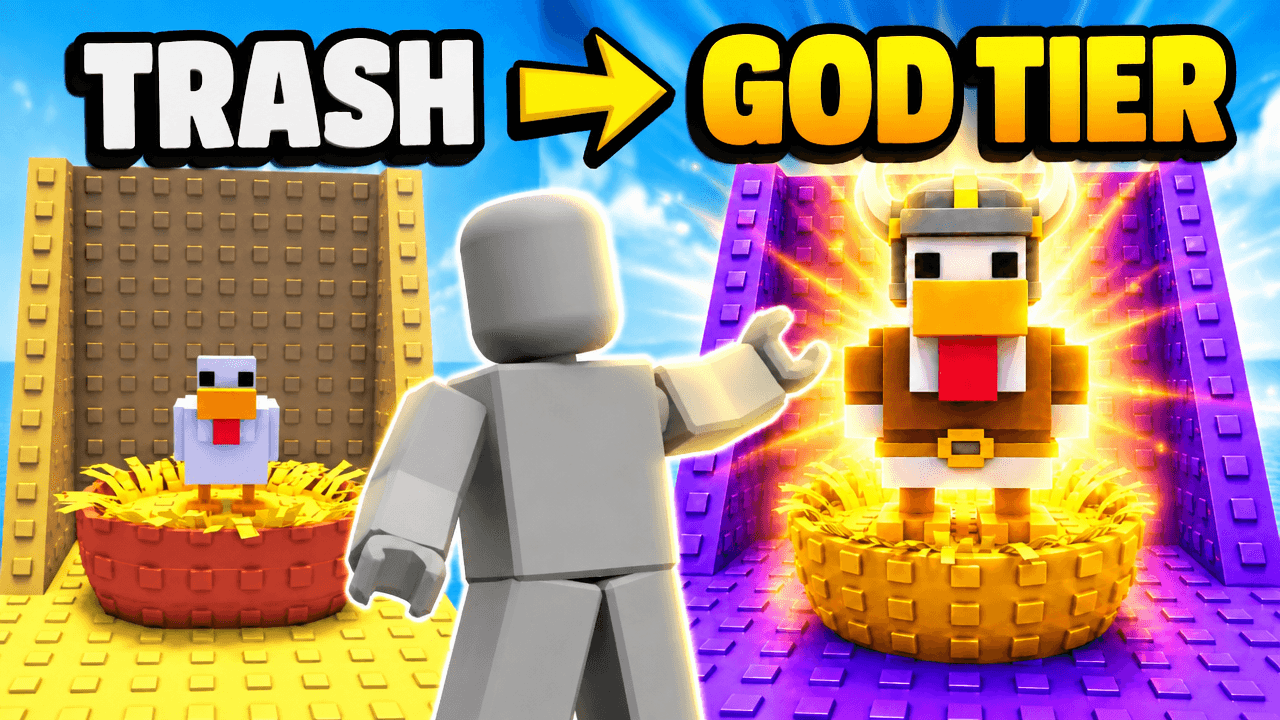
Alternate between the two across a series so your channel page does not look repetitive.
Roblox Progression Thumbnail Template
100% Free • No Credit Card Required • Instant Access
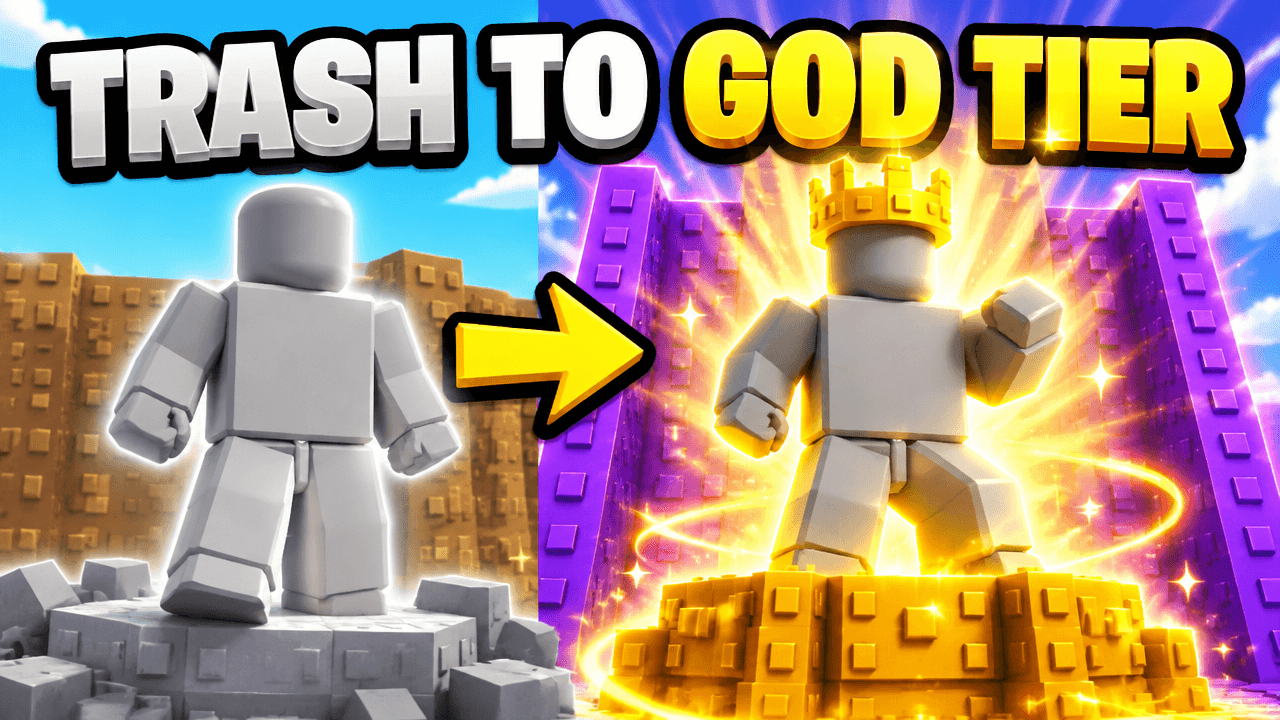
A split screen Roblox progression thumbnail showing a basic character upgrading to a glowing god tier status for gaming videos.
Template Features
- Opens straight into LaunchLens
- Edit anything with plain-language AI prompts
- 1280x720 YouTube-ready export
- Free to start: 90 credits, no card
What creators search for
ROBLOX thumbnail questions
What size should a Roblox thumbnail be?
A YouTube thumbnail must be exactly 1280x720 pixels, formatted in a 16:9 aspect ratio, and remain under 2MB in total file size. LaunchLens will automatically format your finished design to meet all of these exact specifications.
Why does this layout work well as a design?
This layout works because the heavy contrast between the muted grey left side and the bright glowing yellow right side instantly communicates a massive upgrade. The large central arrow serves as a strong focal point that naturally directs the viewer's eye across the transformation.
How do I put my own Roblox character into this template?
You can add your character by attaching a picture of your avatar in LaunchLens and typing plain instructions to replace the blank placeholder. The system will read your text and swap the grey figure for your custom character in both the starting and finishing poses.
What kind of text works best on a progression thumbnail?
Keep your text to a bare minimum, using just a few large and bold words so the message is readable on small mobile screens. Using stark contrasting colors like the white and yellow in this template helps the text stand out completely from the detailed background.
What kind of Roblox videos fit this specific thumbnail style?
This split screen style is perfect for simulator games, tycoon playthroughs, or any gaming video focused on starting from scratch. It visually summarizes the entire journey of the video, showing the viewer exactly what extreme transformation they are about to watch.
About This Template
When you need roblox thumbnail ideas for a zero to hero video, the Trash to God Tier layout gives you a massive visual jump from a basic starter to an endgame legend. It relies on a heavy split screen contrast between a dull rubble starting zone and a glowing golden pedestal to tell a complete story in one frame. You can use it as a free roblox thumbnail foundation for any simulator challenge or long account build.
The visual math behind the split screen
- Absolute contrast. The left side is flat and desaturated. The right side is bathed in warm light and saturated colors.
- Clear hierarchy. The split runs right down the middle. This gives equal visual weight to where the player starts and where they finish.
- Environmental storytelling. The floor matters as much as the character. Moving from broken rubble to a pristine pedestal does the heavy lifting for the visual narrative.
- Color coding. Grey immediately reads as low level. Gold reads as the cap. A viewer processes the journey before they even look at the details.
Where this progression layout fits best
- Long roblox progression documentaries and account rebuilds.
- Zero to hero challenges in popular simulator games.
- Tycoon gameplay where you start with nothing.
- Level one to max level comparison runs.
- Guides showing the fastest route to the endgame.
Shaping this in your roblox thumbnail maker
- If you're figuring out how to make roblox youtube thumbnails without complex menus, open this layout in LaunchLens and start by typing out a description of your player character.
- Replace the blank mannequins standing in for the player. You do this by uploading an image of your own Roblox avatar directly into the scene.
- Change the environment on the right side by typing a new material if your endgame uses neon or diamond instead of gold.
- Deepen the overall contrast by typing a short instruction to dim the left side lighting and increase the glow on the right.
- Swap the generic rubble for the actual starter zone of your game by writing in the exact floor type you need.
Getting the extreme contrast right is the hardest part of a progression frame, and this layout has it built in from the start.